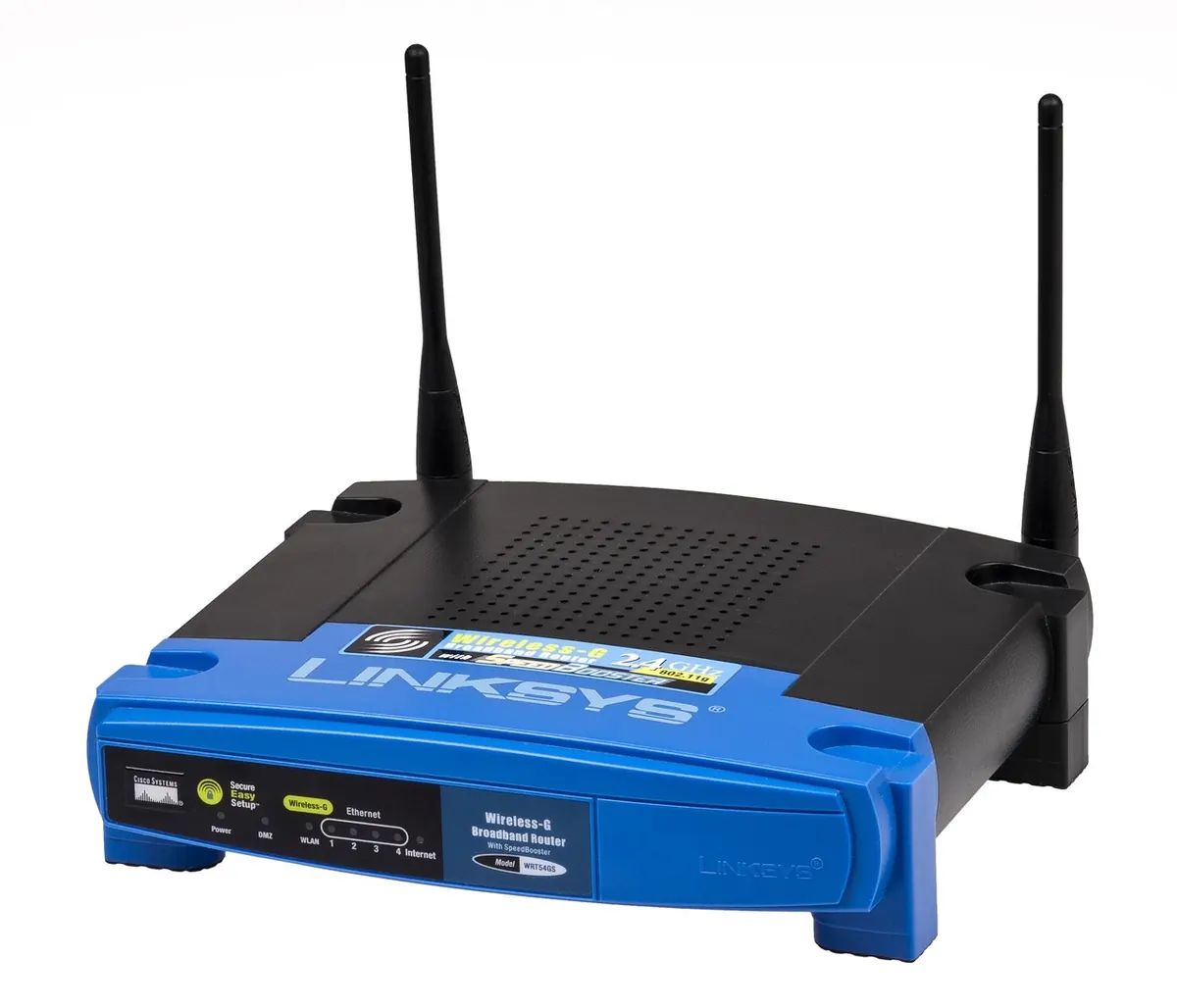
Your Wi-Fi probably reaches the driveway, the garage, and, if your neighbors are lucky, their kitchen table. Every device on it shares one front door: the router. The thermostat, the baby monitor, the laptop holding your tax return, the TV nobody admits to using at 1 a.m. If someone gets past that door, they are inside the house with all of them.
Hardening a home router takes about an hour, and most of it is clicking through menus you will never look at again. What follows is a walk through the house, room by room, with 15 settings worth changing before you forget about the whole thing for another three years.
Start Where the Router Actually Lives
The router usually sits behind the vacuum cleaner or on top of a bookshelf, blinking quietly for years. That is exactly why its factory defaults survive so long. Spend your first fifteen minutes on these three.
- Change the admin password. The control panel login is not the same as your Wi-Fi password, and plenty of routers still ship with something like admin/admin or a code printed on the sticker underneath. Anyone in range who knows the default can log in — and once inside, they can read your Wi-Fi password in plain text. Set a long, unique password and put it in a password manager.
- Rename the network. Names such as Smith_5G or Apt_4B_2.4 tell a stranger which door the signal belongs to. Pick something neutral and boring instead. Hiding the SSID does not help; your own devices keep broadcasting it, and you will only make setup harder for yourself.
- Turn off WPS. Wi-Fi Protected Setup lets you join a device with a button press or an eight-digit PIN. The button is tolerable. The PIN has been shown to be guessable on a long list of models, so keep WPS off and switch it on only for the ten minutes it takes to pair a stubborn printer.
The Living Room: Passwords and Who Can Reach the Panel
This is where phones, laptops, and the television connect. These three settings decide whether someone parked outside can join them.
- Choose WPA3, with WPA2-AES as the fallback. In wireless settings you will usually find a dropdown for security mode. WPA3 is the current standard. If an older device refuses to connect, drop the whole network to WPA2-AES rather than mixing modes. Never leave it on WEP or TKIP.
- Set a real passphrase. Sixteen characters or more, used only here. Three or four unrelated words strung together with a number are easier to type on a TV remote than symbol soup, and much harder to guess. Do not reuse the password from your email or bank.
- Turn off remote administration. Any option labeled Remote Management, WAN Access, or Cloud Admin lets somebody reach your router's panel from the internet. Unless you genuinely troubleshoot from the office, switch it off and update the router locally.
The Home Office: Firmware Is the Lock You Cannot See
Firmware is the router's own operating system, and the flaws inside it are the ones attackers actually use. Three things to settle here.
- Turn on automatic firmware updates. If your router offers them, enable them and stop thinking about it. If it does not, check the manufacturer's support page once a quarter and install what is there.
- Replace end-of-life hardware. Look at the date on the newest firmware available for your model. If it is years old and the vendor has moved on, no amount of configuration will keep that device safe.
- Disable services you never use. Telnet, SSH, FTP, the built-in file or media server, the "allow IPv6 firewall bypass" option. Each one is another door, and you only need the doors you walk through.
A router that no longer receives security updates is not a router you can secure. It is a router you replace.
The Kitchen: Appliances, Plugs, and the Guest Network
Smart plugs, robot vacuums, cameras, and that fridge with a screen are the least maintained devices in the house. Give them their own lane.
- Create a guest network with client isolation enabled. That single toggle stops guest devices from talking to one another and, more importantly, from reaching your main network.
- Move smart-home gear onto that network. If a cheap camera gets compromised, the attacker lands in a dead-end network instead of beside your laptop. Some routers label this an IoT network; it works the same way.
- Rotate the guest password and switch the network off when it is idle. Change it after a party or a houseful of visitors, and leave the guest network disabled during quiet months.
The Guest Bedroom and the Kids' Room: Access and Hours
Who gets in matters, but so does what they can reach once they are in.
- Walk the connected-device list once a month. Every router has one. Rename what you recognize, and investigate anything you do not. An unfamiliar device is worth a few minutes of curiosity.
- Set filtering and a schedule. Point the router at a filtering DNS resolver
Photo: WikimediaImages / Pixabay